
Start with an iDoceo backup
You will find all the details about iDoceo's backups explained here.
In summary, the steps needed to transfer your data are the following:
In summary, the steps needed to transfer your data are the following:
On your old device
Start on the old device that contains the iDoceo data you want to transfer.
Go to iDoceo’s menu on your old device > Settings > Backup & Restore > Manual Backup
Before you make a Manual Backup, set a backup password and keep it safe. You will need this password to restore the backup in iDoceo on your new device. Set the password using the last option in the Manual Backup menu, "Password for Backup Archives".

Remember, though the process is simple, you have to make sure you make the backup from your old device iDoceo, where you actually have your data, and that you restore the backup in your new device iDoceo.
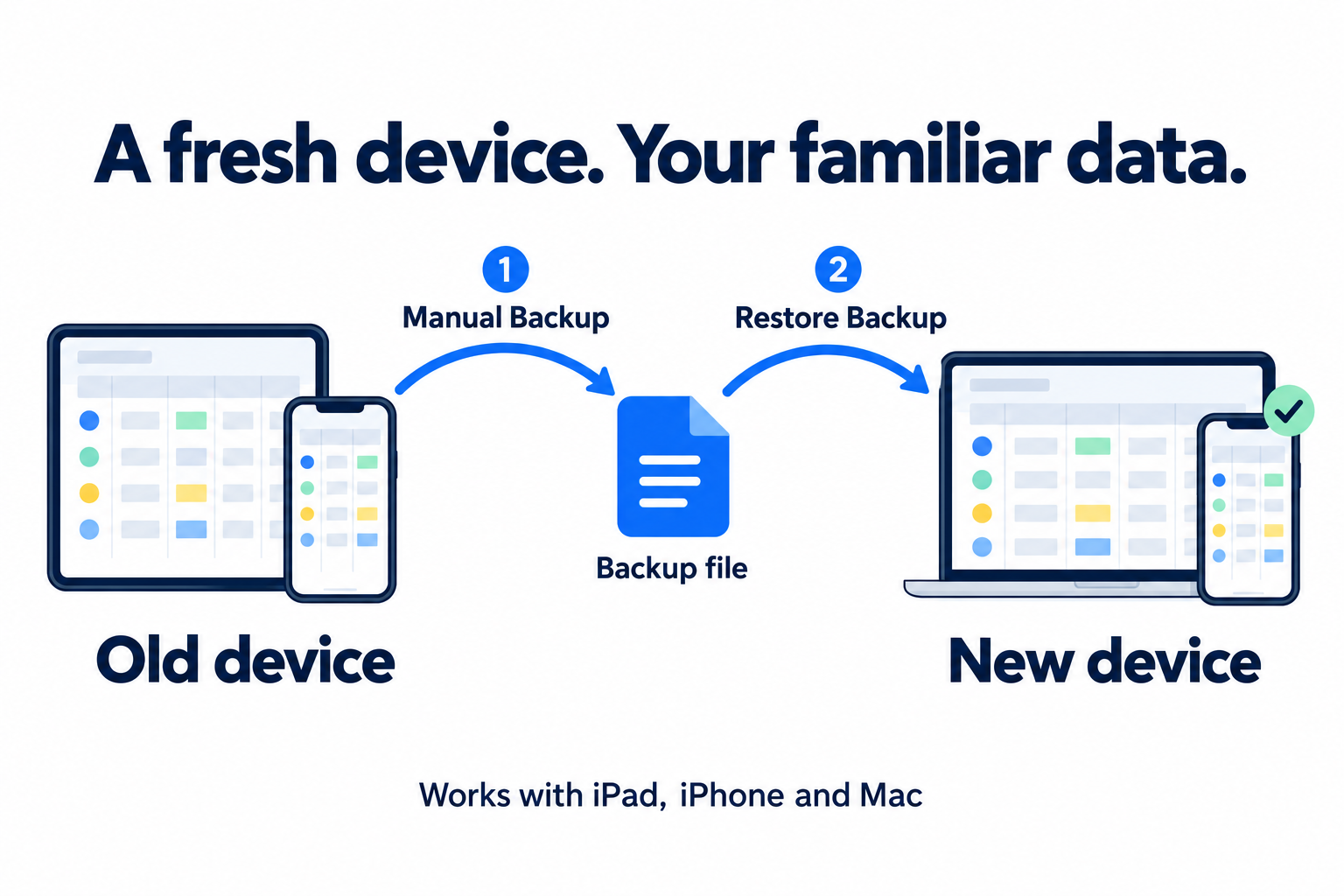
Back up on your old device, restore on your new one
On your new device
Once you have made the backup from iDoceo and have it safely stored in your chosen location, restore it on your new device.
On your new device, open iDoceo’s menu > Settings > Backup & Restore > Restore Backup > Select where you have stored your Backup file.
Find the backup file you want to restore and tap it. When asked, enter the password set when you created the backup, then continue.
iDoceo will then ask to restart. Tap OK and allow iDoceo to close on its own. Open iDoceo again to access your restored data.
This is the same restore process wherever the backup is stored: Google Drive, iCloud, OneDrive, Dropbox, To Other Destinations or a WebDAV server.
You must download iDoceo from the Apple App Store on your new device, using the same Apple ID as you did with your old device iDoceo.
Apple Backups, in iCloud or through iTunes do not include iDoceo's data. You must use the method explained in this article to transfer your data from one device to another.
Apple Backups, in iCloud or through iTunes do not include iDoceo's data. You must use the method explained in this article to transfer your data from one device to another.